
How to Set Up a Booking Page for Language Tutors
A practical booking page setup for online English and Spanish tutors: trial lessons, lesson length, weekly slots, packages, video links and email reminders.
Olesia


If you teach English or Spanish online, your students might be a nurse in Ohio preparing for a move, a teenager in Madrid with exams coming up, and an engineer in Monterrey who wants to sound confident in meetings. They all need the same few things from you before the first lesson: a time that works, a clear price, and a link that opens when it’s time to talk.
A booking page handles that, as long as it’s set up for how language lessons actually run. This guide covers the setup choices that matter most for independent language tutors who mostly teach online. If you’re still getting your business off the ground, start with how to start a tutoring business. For writing a page that persuades (bio, testimonials, what’s included), see how to build a booking page.
What a language tutor’s booking page needs to do
Language learning rewards routine, so your booking page has two jobs:
- Make the first lesson easy to try, so a new student can check your teaching style and level without a big commitment.
- Make the weekly routine easy to keep, so a student who likes the trial can lock in a regular time and pay for a block of lessons.
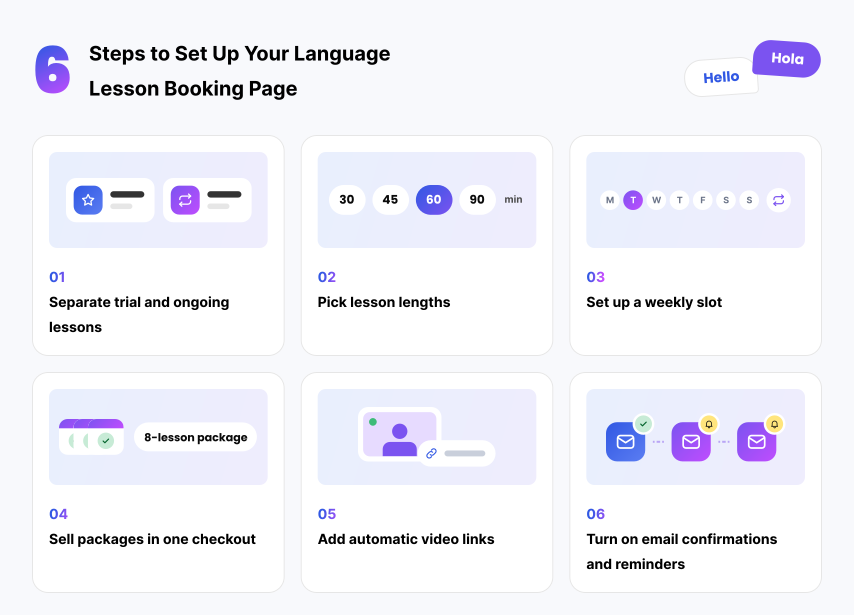
The steps below build both.
1. Separate your trial lesson from ongoing lessons
A trial lesson and an ongoing weekly lesson are different offers, so give them different pages.
- Trial or intro lesson: short, single session, focused on level, goals and fit. Many tutors run it as a 30-minute call.
- Ongoing lessons: your regular length and price, with weekly booking and packages.
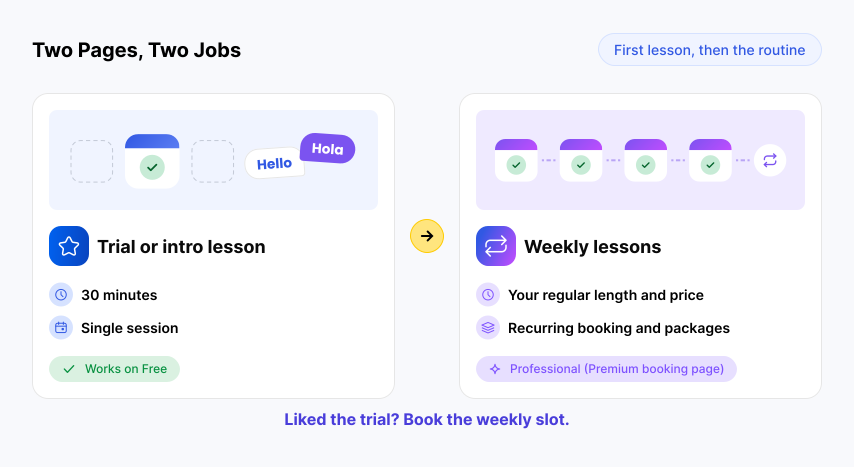
On the Free plan you get one booking page, which is a Classic page with 15-, 30- and 60-minute options. That works well as your trial page: a 30-minute intro call that anyone can book.
Once students want to continue, the weekly lesson page is where Professional helps. It adds unlimited booking pages and the Premium booking page type, which supports paid lessons, packages and recurring bookings. Professional is $7.99/mo billed annually or $9.99 monthly, and new accounts start with a 14-day trial with no credit card.
If you want to charge for the trial lesson, that also needs a Premium booking page, because paid sessions are only available on that page type.
Add a weekly lessons page when students continue
Professional adds unlimited booking pages and the Premium booking page type for paid lessons, packages and recurring bookings. New accounts start with a 14-day trial, no credit card needed.

2. Pick lesson lengths that fit how you teach
Common choices for language lessons are 30, 45, 60 or 90 minutes. Shorter lessons suit children and conversation practice. Longer ones suit exam prep or adults who want grammar and speaking in one sitting.
- On Free, you can offer 15-, 30- and 60-minute sessions.
- On Professional, you can add custom durations such as 45 or 90 minutes. On a Premium booking page you can offer more than one length, set a default, and give each length its own price.
Two or three options are easier for a new student than five.
3. Set up a recurring weekly slot
A standing slot like “every Tuesday at 7 p.m.” is easier to keep than finding a new time each week. On a Premium booking page, students can turn on a recurring option and set their own pattern, such as weekly on Tuesdays for eight weeks, all in one checkout.
A few settings make this work well:
- Allow multi-session booking. Recurring bookings need the multi-session setting set to flexible or custom.
- Set a long enough booking window. The help center suggests at least one to three months for weekly sessions, so students can book a full block.
- Keep your availability up to date. If a recurring pattern hits a date you’re unavailable, that date is skipped and the student sees which dates were skipped and why.
If a student is sick or traveling, you can cancel one session in the series without breaking the rest. Our guide to recurring lesson scheduling goes deeper on when to use a recurring series instead of single bookings.
4. Sell lesson packages in one checkout
Packages give students a reason to commit and give you predictable income. On a Premium booking page, students can book up to 50 lessons in one checkout, and they pick the lesson times at checkout.
You can let students choose any number of lessons, or set an exact number such as an 8-lesson package. With an exact number, the page shows a package label so students know what they’re buying. Payment goes through Stripe at booking, and Apple Pay and Google Pay appear when the student’s device supports them.
You set a currency for each paid page. The help center lists USD, EUR and GBP as examples, which covers tutors in the US, Spain and the UK.
For deciding what to charge and how to price a package, see how to charge for tutoring.
5. Add automatic video links
For online lessons, set your booking page’s session location to online and pick a meeting tool. The link then goes out in the confirmation email, so you never paste links by hand.
- Google Meet works on the Free plan and needs a connected Google Calendar.
- Zoom is on Professional.
- Microsoft Teams is on Professional and needs a connected Microsoft Calendar.
Pick the tool your students already use. Adults whose employers use Teams may prefer it, while younger students may find Google Meet simplest.
6. Turn on email confirmations and reminders
Every booking sends an email confirmation with the date, time, time zone and location or video link. On Professional, you can go further:
- Email reminders: up to three per booking page, each with its own timing, such as one day before and one hour before. Reminders are email only.
- A short custom note: for example, “Have your notebook ready and test your microphone,” or a sentence in the student’s target language to set the tone.
- Cancel and reschedule links: on by default, so students can move a lesson themselves.
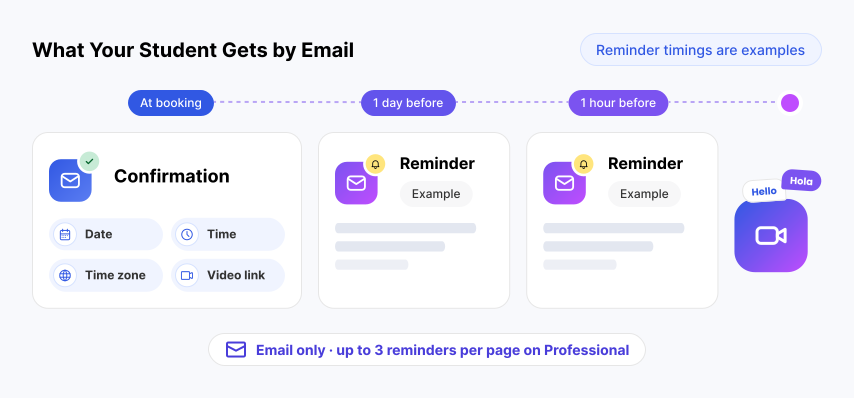
Add a cancellation policy too. It’s available on every plan, including Free, and appears on the booking page and in confirmation emails. Our cancellation policy guide has wording ideas.
Teaching students in different countries
Independent language tutors often teach across borders: a Spanish tutor in Mexico City with students in Toronto and Chicago, or an English tutor in Valencia with students in Sydney and Seville. A few practical habits help.
Let the booking calendar show local times. Calfrenzy’s help center says the booking calendar defaults to the student’s device time zone, with a selector to change it, unless you’ve set a fixed time zone for the page. Confirmation and reminder emails include the time zone too.
Watch for daylight saving changes. Clocks change on different dates in the US and Canada, the UK and Spain, and Australia, whose daylight saving runs in the southern summer. Most of Mexico no longer changes its clocks at all. Around those weeks, a lesson that used to be at 7 p.m. for your student may shift by an hour. A quick note in your reminder text during those weeks prevents confusion.
Write your page for the people who book. Write your description in the language your students are most comfortable reading, or in both languages if you teach both ways. A Spanish tutor for English speakers might write in English with a Spanish greeting.
Language tutor setup checklist
- A Free trial or intro page (30 minutes works well).
- A weekly lessons page with your regular length and price (Professional, Premium booking page).
- Recurring weekly booking turned on, with a booking window of at least one to three months.
- Packages set as an exact number or a flexible choice, paid through Stripe.
- A video tool connected: Google Meet, Zoom or Microsoft Teams.
- A cancellation policy, plus email reminders and a short prep note.
- A test booking from your phone before you share the link.
Frequently asked questions
Yes. A free trial page works on any plan. Charging for a trial lesson needs a Premium booking page on Professional.
Yes, on a Premium booking page. Students can book a recurring weekly series or a package of up to 50 lessons in one checkout.
Keep the routine going
Language progress depends on showing up week after week. Make the first lesson easy to try, make the weekly slot easy to keep, and let confirmations and reminders do the follow-up for you.
Set up a free booking page for intro lessons, and add weekly packages, payments and email reminders when you upgrade.
Set up your free language lesson booking page
Set up your free booking page in under 2 minutes. No credit card required.
Get Started FreeRelated Articles

How to Build a Booking Page That Actually Converts
A booking page converts when it answers every question a client has before they reach a wall — then keeps the next step in reach. Lead with your brand, show clear session options, spell out what’s included, add real proof, and keep the booking button visible the whole way down.

How to Sell Coaching Packages Instead of Single Sessions
A client who commits to a block shows up, does the work, and gets a result worth referring. Here’s how to structure a package, frame its value, and — the part most guides skip — let clients book and pay for the whole thing in one checkout.

Recurring Lesson Scheduling: How to Book a Full Term at Once
Book a repeating series of lessons — every Tuesday at 4pm for a term — as one series instead of scheduling each lesson individually. How recurring scheduling works, when to use it instead of one-off or multi-session booking, and how to set up a full term without the weekly admin.
Ready to Grow Your Practice?
Set up your booking page in under 2 minutes. Packages, payments, and reminders included.


