


Connect Your Calendars. Keep Your Availability in Sync
Connect Google Calendar, iCloud Calendar, Outlook, or Microsoft Exchange to Calfrenzy. Your connected calendars are checked for conflicts so clients only see times when you're available.



One Booking Schedule Across All Your Calendars
Your schedule may live in more than one place. Connect the calendars you already use, and Calfrenzy checks your existing commitments before showing available times to clients.
Work calendar, personal calendar, or both — keep using the tools you know while maintaining one accurate booking flow.
- No copying events between calendars
- No manually blocking the same time twice


Connect the Calendars You Already Use
Pick the calendars your schedule already lives in — Calfrenzy works with all of them together.
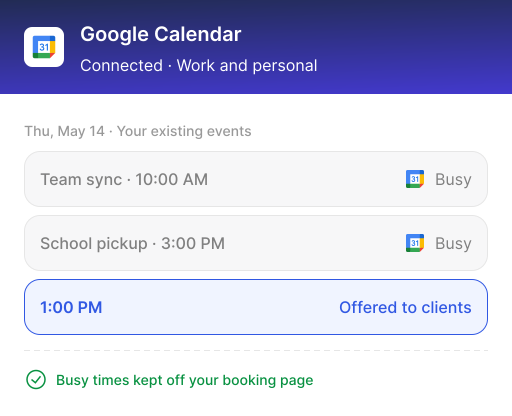
Google Calendar
Connect your personal Google Calendar or Google Workspace calendar and use your existing events when determining when clients can book you.
Calfrenzy checks your connected Google Calendar for busy times so your booking availability stays aligned with your schedule.

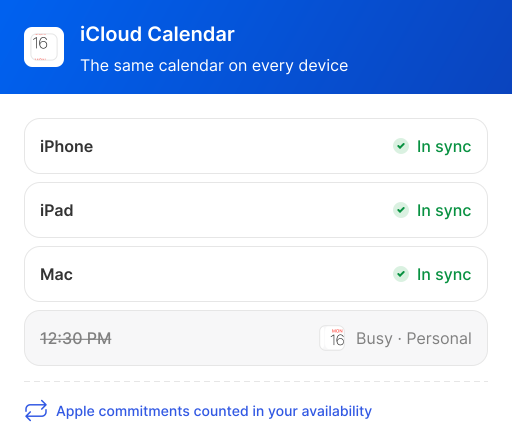
Keep Using Your Apple Calendar
Connect your iCloud Calendar so appointments and commitments from your Apple calendar can be considered when Calfrenzy calculates your availability.
Keep using the calendar you already rely on across your iPhone, iPad, and Mac.
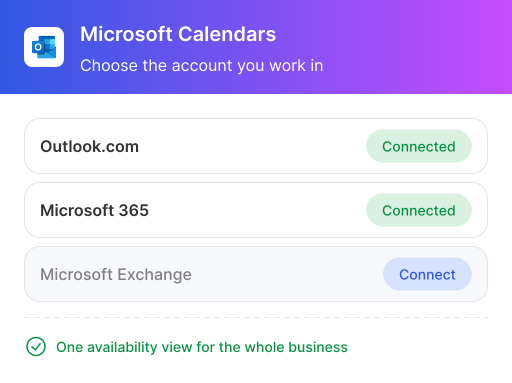
Connect Outlook or Exchange
Connect Outlook.com, Microsoft 365, or Microsoft Exchange and keep your work calendar aligned with your Calfrenzy availability.
Ideal if your business already runs on Microsoft tools.
Keep Your Availability Accurate Across Calendars

Avoid Double-Bookings
Calfrenzy checks your connected calendars before displaying available times on your booking page. Add a personal appointment, client meeting, or lesson to a connected calendar, and that busy time can be removed from your available booking slots.
You don't have to manually block the same time again in Calfrenzy.

Check Multiple Calendars Together
Your work and personal schedules don't need to live in the same calendar. Connect the calendars you use and let Calfrenzy consider them together when calculating your availability.
You keep your calendars separate. Your clients get one clear view of when you're free.

Keep Your Calendar Private
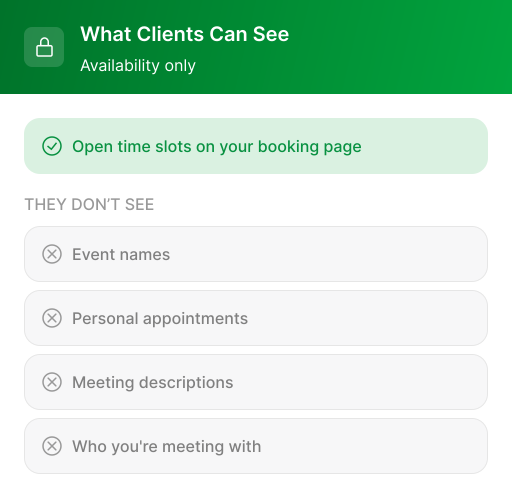
Clients never see your actual calendar. They only see the dates and times you're available to book — not your event names, personal appointments, meeting descriptions, or other calendar details.

Keep Scheduling and Video Meetings Connected
Use your calendar alongside Calfrenzy's video conferencing integrations so clients know where to join when their session starts.
How Calendar Integration Works
Connect Your Calendar
Choose Google Calendar, iCloud Calendar, or Microsoft and connect it to Calfrenzy.

Calfrenzy Checks When You're Busy
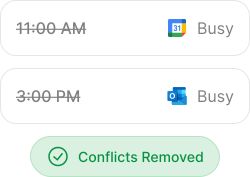
Events from your connected calendars are considered when Calfrenzy calculates the availability shown on your booking page.
Clients See Only Your Open Times
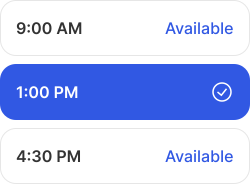
Your clients see available booking slots — not your private calendar — and choose a time that works for them.
Your Availability Stays Aligned
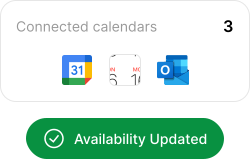
As your connected calendars change, Calfrenzy uses them to help keep your booking availability accurate.
Your Calendar Stays Yours
Connecting a calendar doesn't mean sharing it with clients. Calfrenzy uses your calendar availability to determine when you can be booked.
You stay in control of your schedule while giving clients a simple way to find an available time.
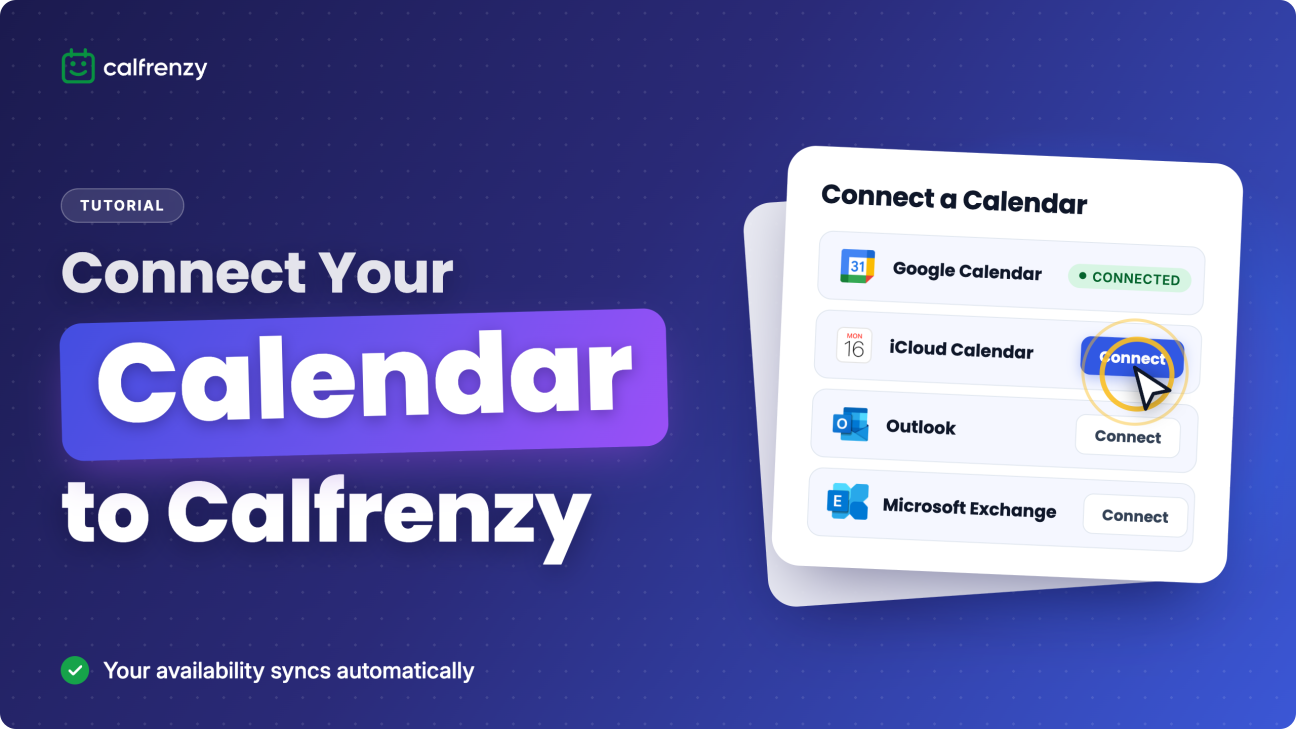
See How to Connect Your Calendar
The video walks you through connecting your calendar, reviewing your settings, and getting your availability ready for client bookings.
Explore Calfrenzy Integrations
Connect the tools you already use and build a smoother booking workflow around Calfrenzy.

Google Meet
Create Google Meet links for online sessions and give clients a clear place to join.

Zoom
Connect Zoom to Calfrenzy and make it easier to schedule and run online appointments, lessons, and consultations.

Microsoft Teams
Use Microsoft Teams for online sessions and keep your booking and meeting workflow connected.

Stripe
Accept payments as part of your Calfrenzy booking flow, including single, multiple, and recurring sessions.

Google Workspace
Access and share your Calfrenzy booking pages from the Google Workspace tools you already use.


Browser Extension
Keep your Calfrenzy booking pages within reach while working across Gmail, LinkedIn, and the web.
Frequently Asked Questions
Google Calendar, Microsoft Outlook, and Apple iCloud.
Yes. Connect as many as you use, and Calfrenzy checks all of them for conflicts before offering a time slot to clients.
No. Clients only see your open time slots — never event titles, details, or who you're meeting with.
Calfrenzy treats it as busy time and removes that slot from your booking page automatically, so you're never double-booked.
Yes. Connect both so personal commitments block your availability without ever being visible to clients.
Yes. When a booking is confirmed, Calfrenzy generates a meeting link automatically using the tool you choose.
No. Keep the calendar you already use — Calfrenzy syncs with it rather than replacing it.
No. Connecting a calendar gives Calfrenzy read access to check your availability. Clients never get access to the calendar itself — only to your booking page.