
How to Move Existing Clients From Texting to a Booking Page
Clients still text you for times? Here’s how tutors and coaches can move regulars to a booking page, with message templates and a plan for week one.
Irish Sailago


You set up a booking page, but your regulars still text you. “Are you free Thursday?” “What about 5?” “Can we do next week instead?” The page is ready. The habit is the hard part.
This guide is for tutors and coaches who already have clients and want them to book through one link instead of a message thread. It covers what to say, when to say it, how to get through the first few weeks, and what to do with the client who keeps texting anyway. If you haven’t built your page yet, start with our guide on how to build a booking page, then come back here.
Why switching is harder than setting up
Setting up a page takes an afternoon. Changing how people who already know you get in touch takes longer. Your clients have texted you for months, and it works for them. A link can feel less personal than a message. And if you answer the next “free Thursday?” text with a time, you’ve taught everyone that texting still works.
The fix is to make the link the easiest option for the client and to make the change at a clear moment, not slowly by accident.
Get the page ready for the clients you already have
Your page has to work for regulars before you send the link to anyone. Check five things:
- Your real hours. Connect the calendar you actually use so busy times are blocked. If a client sees a slot you can’t take, they’ll go back to texting.
- The sessions they already book. If you sell 60-minute lessons, offer 60 minutes. The Free plan includes 15-, 30- and 60-minute sessions. Custom lengths such as 45 or 90 minutes are on Professional.
- Your cancellation rules. Write the notice window on the page. A cancellation policy is available on every plan, including Free. Our cancellation policy guide has wording you can adapt.
- Where the session happens. Add the address for in-person sessions or the video link for online ones. Google Meet works on Free once your Google Calendar is connected. Zoom and Microsoft Teams are on Professional.
- A test booking from your phone. Book a session the way a client would. If anything confuses you, it will confuse them.
Build the page before you announce it
Set up a free booking page in under 2 minutes with no credit card required, then send it to the clients you already have.

Pick a clear date to switch
A switch works best when it lines up with something that is already changing. Good moments include:
- the start of a new term, month or coaching program
- a new package or block of sessions
- a change to your hours
- a price change (our price increase notice templates cover that message)
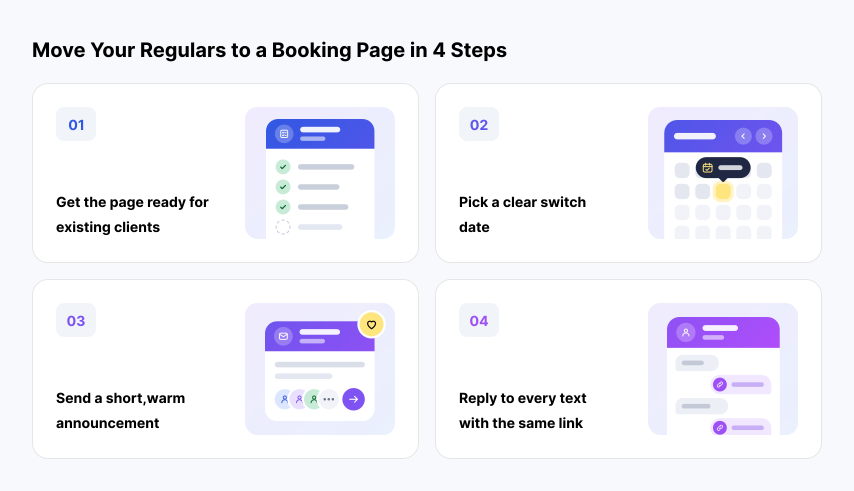
Choose a date a week or two ahead. Sessions already arranged stay as they are, and only new bookings go through the link.
What to say: four templates
Keep the message short and warm, and lead with what the client gains: booking at 10 p.m. without waiting for your reply.
1. The announcement to adult clients
Hi [Name],
Quick update: from [date], I’m moving bookings to my booking page: [link]
You’ll see all my open times at once and can book whenever it suits you. You’ll get a confirmation email with the details straight away.
Anything you’ve already booked with me stays as it is. If you’d like a hand with your first booking, just reply and I’ll walk you through it.
Thanks, [Your name]
2. The announcement to parents
Hi [Parent name],
From [date], I’ll be taking lesson bookings for [Student name] through my booking page: [link]
You can see every open time, pick the slot that fits around school and activities, and get the lesson details by email. My cancellation policy is on the page too, so it’s easy to find if plans change.
[Student name]’s current lessons stay as they are. If you’d like to keep the same weekly slot, book it on the page before [date] so it stays yours.
Thank you, [Your name]
3. The reply when someone texts for a time
Hi [Name]! The easiest way is my booking page: [link]. It shows everything I have open this week, and you’ll get the confirmation by email.
Send it the same way every time. A consistent, friendly reply teaches the habit faster than a lecture about the rules.
4. The note for a client who keeps a standing slot
Hi [Name], I know Tuesdays at 4 are your time, and I want to keep it that way. Please book your next block of Tuesday sessions on my page [link] by [date]. After that, I’ll open any unbooked Tuesday slots to other clients.
Parents and adult clients need different messages
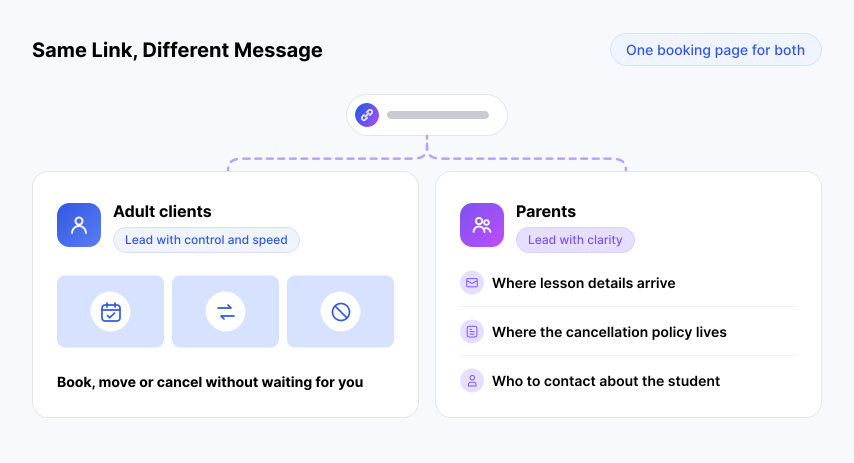
Adult clients usually book for themselves. Lead with control and speed: they can book, move or cancel without waiting for you.
Parents book for someone else and work around school, clubs and other children. Lead with clarity. Tell them where the lesson details will arrive (the email they book with), where the cancellation policy lives, and who to contact about the student. If the student needs the join link too, you can let bookers add guests on Professional, and each guest gets their own confirmation email. Otherwise, ask the parent to forward the confirmation.
Decide before you announce whether older students can book their own lessons or whether bookings stay with the parent who pays.
The first few weeks
Expect the switch to take a few weeks, not one message.
- Week one: send the announcement, then put the link wherever clients look for you: your email signature, your messaging app profile, your website and your social bios. Calfrenzy’s Chrome extension and Gmail add-on, both on the Free plan, let you drop your link into an email without leaving your inbox.
- When the texts come: reply with template 3 every time. Don’t confirm a time by text “just this once.” Every exception restarts the habit.
- When someone books through the page: thank them. A short “Got your booking, see you Thursday” shows you’re still a person.
- If a client is stuck: send the link along with a specific suggestion, for example “Thursday at 4 is open. You can grab it here: [link].” That takes the guesswork out of the first booking.
What to do if someone keeps texting
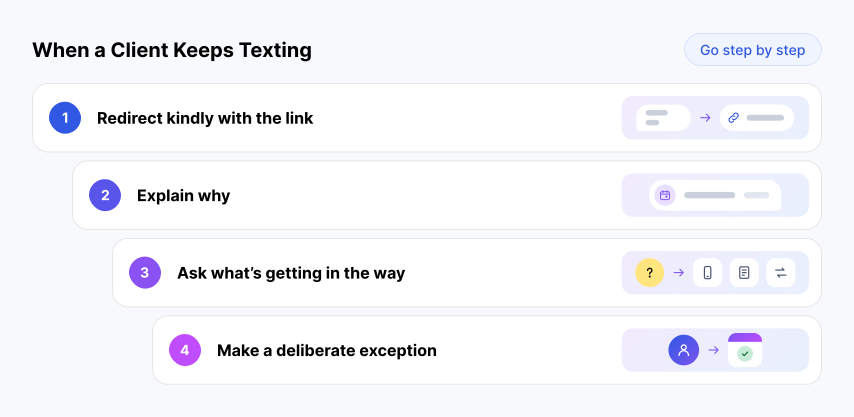
For the clients who don’t switch, go step by step.
- Redirect kindly. Use the same short reply with the link.
- Explain the why. “The booking page is the only place I can see my whole calendar, so I can’t promise times by text anymore. It’s how I avoid double-booking anyone.”
- Ask what’s getting in the way. Sometimes the link opens badly on an old phone, the session they want isn’t listed, or they aren’t sure which option to pick. Fix the page, not the client.
- Make a deliberate exception. If a long-time client truly can’t use links, book the session for them yourself. Make it a decision you choose, not a leak that teaches everyone else to text.
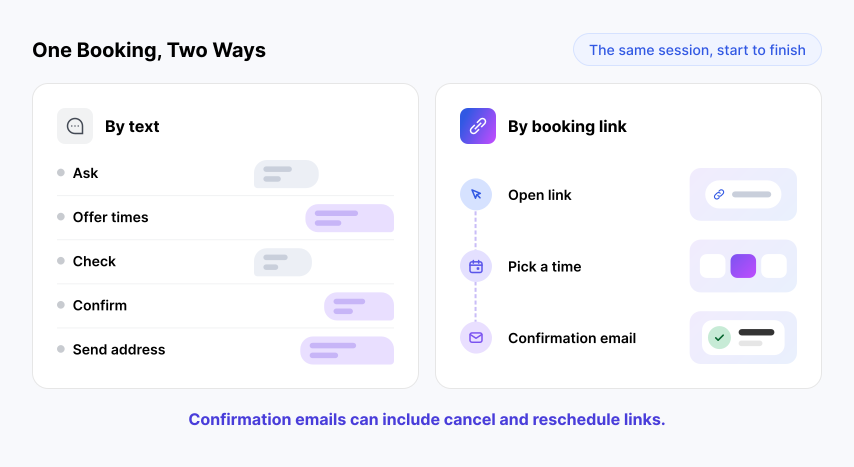
How one link replaces the back-and-forth
By text, one booking can take five or six messages: asking, offering, checking, confirming and sending the address. With a booking page, the client opens the link, picks a time and gets a confirmation email with the date, time and location. Confirmation emails can include cancel and reschedule links, so a change doesn’t have to start another thread. Our guide on handling cancellations and reschedules covers what happens next.
For weekly regulars, Professional goes further:
- Recurring bookings and packages. On a Premium booking page, a client can book up to 50 sessions in one checkout, picking the session times at checkout. See recurring lesson scheduling and how to sell coaching packages.
- Payment at booking. Stripe payments, with Apple Pay and Google Pay, mean you don’t follow up for money by message either. See how to stop chasing clients for payment.
- Custom email reminders. You can set the timing and add a note. Reminders are sent by email.
If one session in a series has to move, you can cancel that session without breaking the rest of the series.
Give your regulars one link to book
Your clients don’t need a new way to reach you, just one easy way to book. Set up a free booking page in under 2 minutes with no credit card required, send it to the clients you already have, and add packages, payments and custom email reminders when you upgrade.
Related reading:
- How to build a booking page
- How to handle cancellations and reschedules
- Add a cancellation policy
- Recurring lesson scheduling
- How to stop chasing clients for payment
Create your free booking page
Set up in under 2 minutes with no credit card required. Add packages, payments and custom email reminders when you upgrade.
Get Started FreeRelated Articles

How to Build a Booking Page That Actually Converts
A booking page converts when it answers every question a client has before they reach a wall — then keeps the next step in reach. Lead with your brand, show clear session options, spell out what’s included, add real proof, and keep the booking button visible the whole way down.

How to Sell Coaching Packages Instead of Single Sessions
A client who commits to a block shows up, does the work, and gets a result worth referring. Here’s how to structure a package, frame its value, and — the part most guides skip — let clients book and pay for the whole thing in one checkout.

Recurring Lesson Scheduling: How to Book a Full Term at Once
Book a repeating series of lessons — every Tuesday at 4pm for a term — as one series instead of scheduling each lesson individually. How recurring scheduling works, when to use it instead of one-off or multi-session booking, and how to set up a full term without the weekly admin.
Ready to Grow Your Practice?
Set up your booking page in under 2 minutes. Packages, payments, and reminders included.


