
Online vs In-Person Tutoring: How to Set Up Your Booking Pages
Tutor online and in person? Give each mode its own booking page so parents book the right lesson, at the right hours, with the right link or address.
Olesia


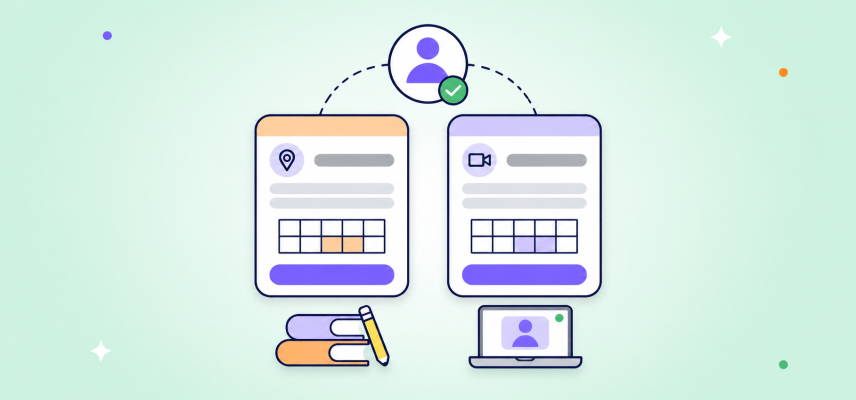
Plenty of tutors don’t pick a side. You might see a 9th grader at the public library on Tuesday after school, then teach a college sophomore over video on Sunday evening. Both are tutoring, but they run on different hours, need different details, and often get booked by different people.
One catch-all booking link causes trouble here: a parent expects you at the house while you’ve set up a video call, or a college student grabs a weekday slot you meant for local families.
This guide shows how to set up booking pages when you tutor both online and in person, with parents, after-school timing and mixed age groups in mind. For the general, all-professions version, see how to set up online and in-person booking from one link. If you’re still deciding how your business will run, start with how to start a tutoring business.
How online and in-person tutoring bookings differ
In-person tutoring | Online tutoring | |
|---|---|---|
Who usually books | A parent, for a younger student | A parent, or an older student booking for themselves |
When | Right after school and weekend mornings | Wider range, including later evenings |
Where | Your home, the student’s home or a library | A video link |
What families need | Address, meeting spot, parking | The video link and a reminder to test audio |
What you plan for | Travel time between lessons | A quiet space and a reliable setup |
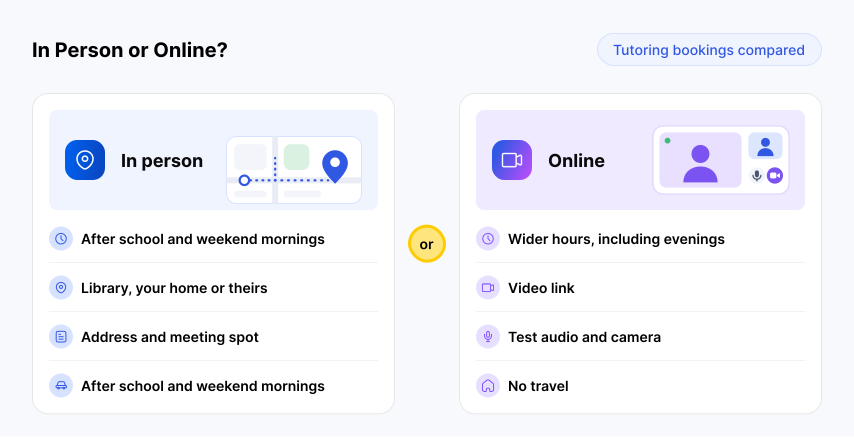
Your booking setup should make these differences obvious before anyone picks a time.
One booking page or two?
In Calfrenzy, each booking page has a session location setting with three options: online, in person, or both. Online uses a meeting tool, in person uses an address, and both shows families the video tool and the address on the same page.
What the help center doesn’t describe is a way for a family to choose online or in person for a specific lesson when they book. So if you teach both ways, we recommend a separate booking page for each mode:
- An in-person page with your address or meeting spot, after-school and weekend hours, and room for travel.
- An online page with your video tool and the hours you’re happy to teach from home.
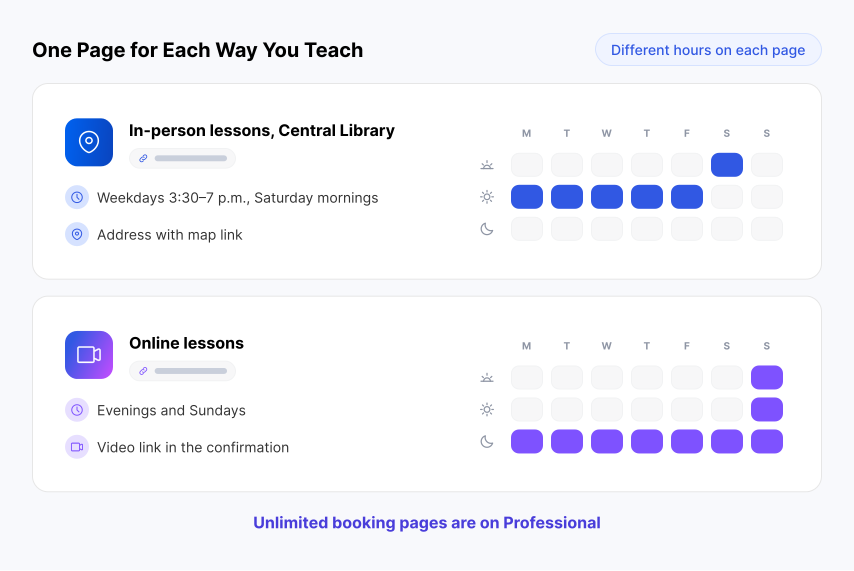
A note on plans: the Free plan includes one booking page. Unlimited booking pages are on Professional, so a tutor who wants a page for each mode would need to upgrade. Professional is $7.99/mo billed annually or $9.99 monthly, and new accounts start with a 14-day trial with no credit card. On Free, use your one page for the mode most families book, and add the second page when you upgrade.
Give each way you teach its own page
Unlimited booking pages are on Professional. New accounts start with a 14-day trial, no credit card needed.

Setting up your in-person page
Name it clearly. “In-person lessons, Central Library” or “Home tutoring, North Austin” tells a parent what they’re booking.
Add the location properly. Type the address and pick a Google Maps suggestion so families get a clickable map link. For a library, add where to find you, such as “second-floor study tables.” If you travel to students’ homes, write something like “Your home (we’ll confirm the address before the first lesson)” and collect the address separately. On Professional, an intake form question can do that.
Set after-school hours. A new default booking page opens Monday to Friday, 9 a.m. to 5 p.m., which rarely suits tutoring. Change it to the hours families can reach you, such as 3:30 to 7 p.m. on weekdays and Saturday mornings.
Leave room to travel. Buffer time and daily booking limits are on Professional. A buffer keeps you from rushing from the library to a student’s home, and a daily limit helps when you can only manage three in-person lessons on a school night. Our guide to buffer time explains how to size it.
Setting up your online page
Connect your video tool. Google Meet works on Free and needs a connected Google Calendar. Zoom and Microsoft Teams are on Professional; Teams needs a connected Microsoft Calendar. The meeting details then go out in the booking confirmation, so you aren’t pasting links into emails.
Offer the hours that only work online. Without travel, you can offer later evening or Sunday slots. Keep them on the online page only, so a local parent doesn’t book a 9 p.m. slot expecting you at the library.
Add a short prep note. One line such as “Join from a laptop if you can, and have last week’s worksheet ready” helps. Custom confirmation text is on Professional; on Free, put the note in your page description.
When a parent books for a student
In tutoring, the person who books is often not the person in the lesson. A parent picks the time and pays; the student needs the link or the address.
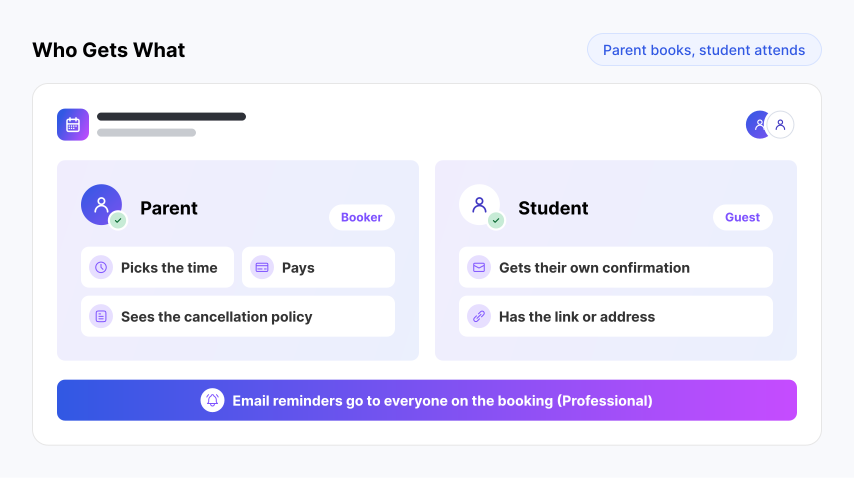
- Let parents add the student. Bookers can add guests by email at checkout, and each guest gets their own confirmation. A parent can add their teen so the student has the video link too.
- Keep pricing per lesson. On a Premium booking page with paid lessons and guests allowed, choose per-session pricing so adding the student doesn’t change what the parent pays.
- Show your cancellation policy. It’s available on every plan, including Free, and appears on the booking page, in confirmations and when someone cancels. See our cancellation policy guide.
- Send email reminders to everyone. On Professional, you can set up to three email reminders per booking page, and they go to all participants, including guests.
Weekly lessons and term packages
Most families want the same slot every week, and many prefer to pay for a block of lessons at once. On a Premium booking page (Professional), families can book a recurring weekly series or a package of up to 50 lessons in one checkout, picking the lesson times as they go. Payment is collected at booking through Stripe, with Apple Pay and Google Pay supported. If one lesson needs to be canceled, you can cancel that session without breaking the rest of the series.
This works the same on an online or in-person page, so you can sell “Tuesday library lessons for the fall term” on one and “Sunday online sessions” on the other. See recurring lesson scheduling and how to charge for tutoring for the details.
Academic and college tutors who teach both ways
Hybrid setups suit academic tutors whose students range from middle school to college. Take a chemistry tutor who teaches high schoolers at the library on Tuesdays and Thursdays and college students online on Sunday evenings.
- Her in-person page shows weekday after-school hours and the library address. She shares it with local school families and on a library flyer.
- Her online page shows Sunday evening hours and a video link. It goes in her email signature and to college students.
- Both pages check the same connected calendar, so a Sunday family event blocks time on both.
If a student wants to switch to online for a week, they cancel that lesson and book the online page, within the notice window in her policy. For making each page convincing, with a bio, what’s included and clear pricing, see how to build a booking page.
Quick setup checklist
- Create one clearly named booking page per mode.
- Add a Google Maps address and meeting-spot notes to the in-person page.
- Connect Google Meet, Zoom or Microsoft Teams to the online page.
- Set different hours on each page.
- Turn on your cancellation policy and let parents add the student as a guest.
- Add buffer time and email reminders (Professional).
- Book a test lesson on each page from your phone before you share the links.
Frequently asked questions
You can set a page to both, which shows the video tool and the address together. The help center doesn’t describe a way to choose one for a specific lesson, so we recommend a page for each mode.
Free includes one booking page. A separate page for each mode needs Professional, which includes unlimited booking pages.
Make every lesson easy to find
Families shouldn’t have to wonder whether Tuesday’s lesson is at the library or on a video call. Give each mode its own page, set hours that match how you teach, and let the confirmation carry the right address or link.
Set up a free booking page for the lessons most of your families book, and add a second page, packages, payments and email reminders when you upgrade.
Set up your free tutoring booking page
Set up your free booking page in under 2 minutes. No credit card required.
Get Started FreeRelated Articles

How to Set Up Online and In-Person Booking From One Link
Let clients book online or in-person sessions from one booking link. Follow the setup steps and start taking bookings today.

How to Start a Tutoring Business: A Step-by-Step Guide (With Checklist)
Start a tutoring business in 10 steps: pick a niche, handle legal and tax setup, set rates and policies, add booking and payments, and find your first students.

How to Charge for Tutoring: Rates, Packages, and Getting Paid Upfront
Learn how to set tutoring rates, price lesson packages, collect payment upfront, and manage invoices, cancellations, and remaining sessions.
Ready to Grow Your Practice?
Set up your booking page in under 2 minutes. Packages, payments, and reminders included.


