
How to Send Parent Progress Updates After Tutoring Lessons
What to send parents after a tutoring lesson: what to include, when to send it, how long it should be, plus after-lesson, weekly and first-month templates.
Olesia


Parents pay for tutoring, but most of them never see a lesson. A short update afterward is how they know the time and money are working. It’s also one of the simplest ways to keep a family booking with you term after term.
This guide is about that after-lesson message: what to put in it, when to send it, how long it should be and how to keep it going without adding an hour of admin to your week. It includes four templates you can copy. If you’re still setting up, how to start a tutoring business covers the first session and the basics.
What parents actually want to know
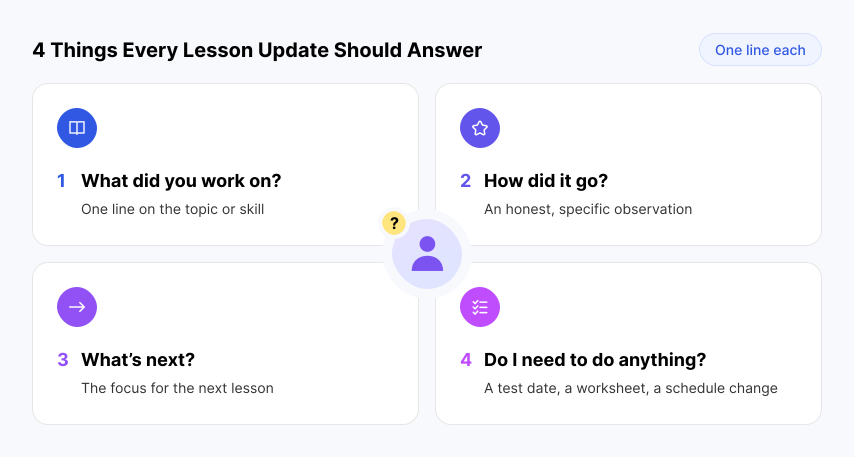
Most parents want answers to four questions:
- What did you work on? One line on the topic or skill.
- How did it go? An honest, specific observation. “Solved three of four equations without prompting” tells a parent more than “Did great today.”
- What’s next? The focus for the next lesson and any practice before then.
- Do I need to do anything? A test date to share, a worksheet to print, a schedule change.
They usually don’t need a transcript of the lesson, teaching jargon, or a grade you made up. If you do track a score, such as a practice test result, use the same measure each time so the numbers mean something.
When to send updates and how long to make them
Timing: send the update the same day, ideally within an hour of the lesson. The details are fresh for you, and the parent can ask the student about it at dinner.
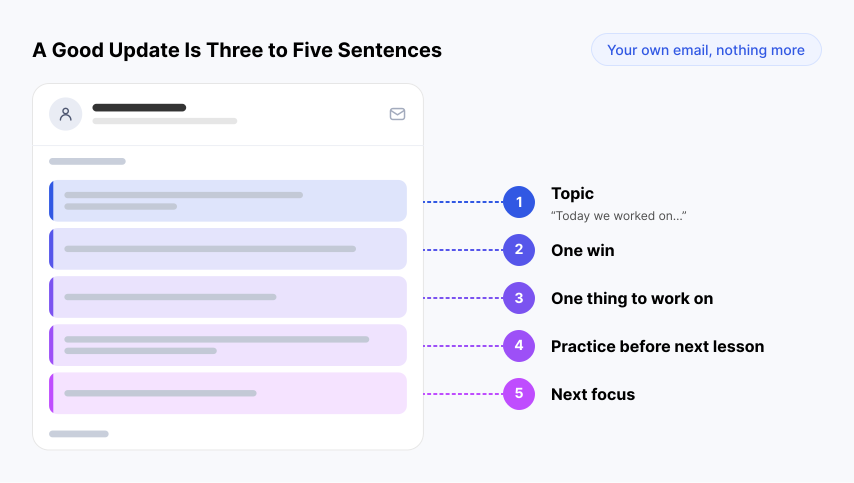
Length: three to five sentences for a regular lesson. If it takes longer than a couple of minutes to write, it’s probably too long to read.
Frequency: agree on it at the start. Some families want a note after every lesson. Others prefer one weekly update, which works well for students you see two or three times a week. Put your choice in your tutoring policies so nobody is guessing.
Channel: use the channel you agreed on, and keep the parent in the loop when you contact a minor. Email is a good default because it gives both of you a record to look back on.
Template 1: the after-lesson update
Use this after a normal lesson.
Hi [Parent name],
Today [Student] and I worked on [topic]. [One specific thing that went well.] [One thing that still needs work.]
Before next [day], it would help if [Student] [short practice task, about 10 to 15 minutes].
Next time we’ll focus on [next topic].
Thanks, [Your name]
Example: “Today Maya and I worked on solving two-step equations. She set up every problem correctly and caught one of her own sign errors. Word problems still slow her down. Before Thursday, it would help if she tried the five word problems on page 42. Next time we’ll focus on turning word problems into equations.”
Template 2: the weekly update
Use this for students you see more than once a week, or for families who asked for less email.
Hi [Parent name],
Here’s [Student]’s week:
• Covered: [topics]
• Going well: [one or two specifics]
• Still working on: [one area]
• Next week: [focus], plus [any test or deadline coming up]
Next lessons: [dates and times].
Let me know if you have any questions. [Your name]
Template 3: the first-month note
Send this after about four weeks or at the end of the first package. It’s a short look back, not a report card.
Hi [Parent name],
We’re a month in, so here’s a quick check-in on [Student].
When we started, we agreed to focus on [goals from the first session]. Since then, [Student] has [progress on goal 1] and [progress on goal 2]. The area I’d still like to work on is [area], and here’s how I plan to approach it: [one sentence].
For the next month, I’d suggest [same schedule / a change in frequency / a focus on an upcoming test].
Is there anything you’ve noticed at home or school that I should know about?
[Your name]
The closing question matters. Parents see homework, report cards and moods that you don’t.
Template 4: when there’s a concern
Not every update is good news. Raise a problem early, calmly and with a plan.
Hi [Parent name],
I wanted to flag something from today’s lesson. [Student] has [specific observation, such as “not finished the practice tasks for the last three lessons”]. It’s making it hard to move on to [topic].
I’d suggest [one concrete step]. Could we have a quick call this week to talk it through?
[Your name]
How to keep updates sustainable
The best routine is one you’ll still follow in month six.
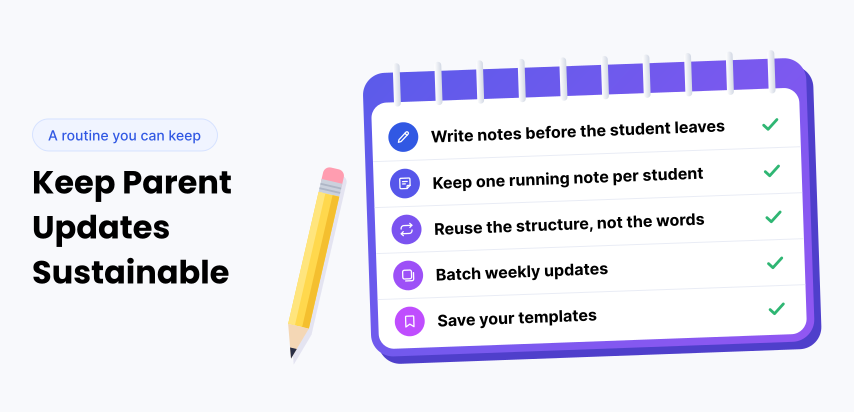
- Write notes before the student leaves. Save the last two or three minutes of the lesson to jot down what you covered and what’s next. The student can help: “What was the hardest part today?”
- Keep one running note per student. A simple document or notes file with dated entries makes the first-month note and parent meetings easy.
- Reuse the structure, not the words. Keep the template, but change the specifics every time. Parents notice copy-paste.
- Batch weekly updates. If you send weekly, pick a regular time, such as Friday afternoon, and write them all at once.
- Save your templates. Keep them as email drafts or snippets so you’re filling in blanks, not starting from scratch.
Where your scheduling tool fits
Calfrenzy doesn’t write or send progress updates. You send those yourself. What a booking page can do is keep the scheduling side out of your updates, so the message is about learning, not logistics.
- Families book and reschedule from your page, and confirmations and email notifications are included on the Free plan.
- Intake form questions (Professional) let parents share goals, upcoming tests and contact details when they book, which gives your first-month note something to measure against. Our client intake form template has questions to start from.
- Recurring lessons and packages (Professional) put the term on the calendar, so the “next lessons” line in your weekly update is already settled. The session tracking dashboard on Professional shows sessions in a package. It doesn’t track academic progress.
Keep the scheduling side out of your updates
Families book and reschedule from your page. Confirmations and email notifications are included on the Free plan.

Make the scheduling side the easy part
Progress updates are your job, and they’re worth the few minutes. Let the booking side run on its own. Set up a free booking page in under 2 minutes with no credit card required, then add packages, payments and email reminders when you upgrade.
Related reading:
- How to start a tutoring business
- Client intake form template
- How to charge for tutoring
- Recurring lesson scheduling
- Customer retention strategies
Create your free booking page
Set up in under 2 minutes with no credit card required. Add packages, payments and email reminders when you upgrade.
Get Started FreeRelated Articles

How to Build a Booking Page That Actually Converts
A booking page converts when it answers every question a client has before they reach a wall — then keeps the next step in reach. Lead with your brand, show clear session options, spell out what’s included, add real proof, and keep the booking button visible the whole way down.

How to Sell Coaching Packages Instead of Single Sessions
A client who commits to a block shows up, does the work, and gets a result worth referring. Here’s how to structure a package, frame its value, and — the part most guides skip — let clients book and pay for the whole thing in one checkout.

Recurring Lesson Scheduling: How to Book a Full Term at Once
Book a repeating series of lessons — every Tuesday at 4pm for a term — as one series instead of scheduling each lesson individually. How recurring scheduling works, when to use it instead of one-off or multi-session booking, and how to set up a full term without the weekly admin.
Ready to Grow Your Practice?
Set up your booking page in under 2 minutes. Packages, payments, and reminders included.


