
Where to Put Your Booking QR Code: 12 Places That Get Scanned
Put your booking QR code where clients already look: cards, flyers, studio signs, email, and more. Print and scan tips for tutors, coaches, and trainers.
Olesia


You already have a booking link. The hard part is getting it in front of people when they are ready to schedule, without another “can you text that to me?”
A booking QR code helps when it sits where clients already look: on a card, a flyer, a studio sign, a slide, or an email signature. This placement playbook is for tutors, coaches, trainers, consultants, and photographers. It covers 12 places that tend to get scanned, plus print and scan tips so the code actually works.
If you still need a booking-page QR, use Calfrenzy’s QR code appointment booking and come back here to decide where it goes.
Why Placement Beats Another Unused Download
A downloaded QR file does nothing on your desktop. Scans happen when three things line up:
- The code is large enough and high contrast.
- A short call to action sits next to it (“Scan to book”).
- The place matches how you meet people (studio walk-ins, conference networking, parents at a school board).
QR code placement is the difference between a code people notice and a code they walk past. Match the surface to the moment: a business card for one-to-one introductions, a window sign for foot traffic, a last slide for workshop attendees who already trust you.
A clear booking page still matters once they scan. If your page needs work first, see how to build a booking page that converts and how to set up online and in-person booking from one link.
12 Places That Get Scanned
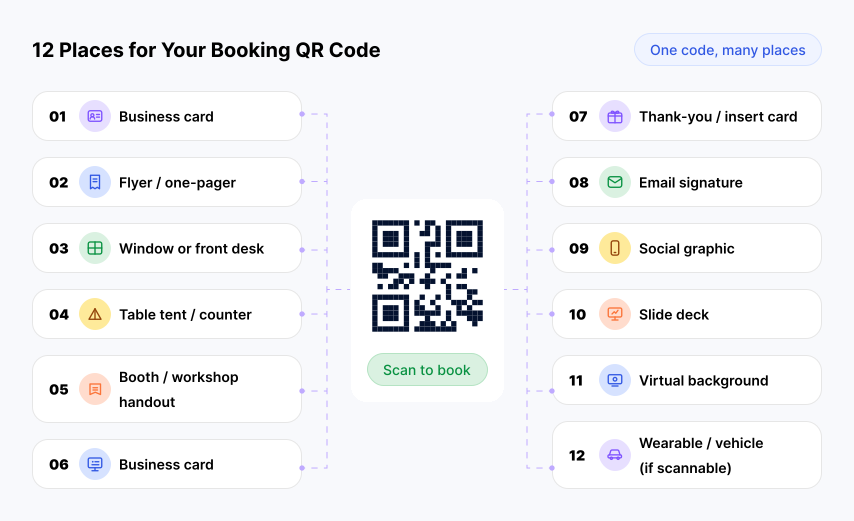
1. Business Cards
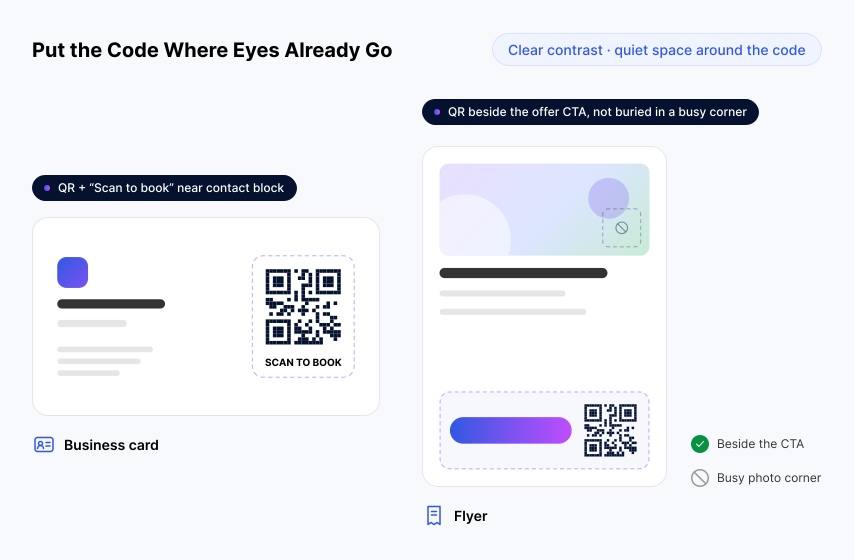
Put a booking QR near your name or contact block with “Scan to book” beside it. Coaches and consultants use this after coffee chats; trainers and tutors use it when a parent asks for next week.
Tip
Leave a quiet margin so the code is not crushed against the edge.
Pitfall
A tiny QR with no CTA often goes unscanned.
2. Flyers and One-Pagers
Place the code next to the offer or main call to action, not in a busy photo corner. Tutors with term flyers and photographers promoting mini-session days both benefit when the next step is obvious.
Tip
Keep the code near the booking promise (“Book your trial lesson”).
Pitfall
Hiding the QR under dense text or overlapping graphics.
3. Studio or Office Window and Front Desk
A window or front-desk sign works for walk-in interest at a training studio, tutoring space, or consulting suite.
Tip
Size the code for short-distance viewing through glass.
Pitfall
Glare and low contrast against a busy photo.
4. Table Tent or Reception Counter Card
A standing card on a reception desk catches people already in your space.
Tip
One offer per card when you run different services.
Pitfall
Too many unlabeled codes on one card.
5. Trade Show or Workshop Booth Banner and Handout
Banners and handouts turn hallway conversations into calendar holds. Point to the banner instead of spelling a URL.
Tip
Pair a large banner QR with a smaller handout QR for the same booking page.
Pitfall
A banner code too small to scan from a few feet away.
6. Shared Poster or Corkboard (With Permission)
Gyms, co-working spaces, community centers, and campus boards can work if you have approval.
Tip
Include your name, offer, and “Scan to book.”
Pitfall
Posting without permission, or linking to a homepage instead of a booking page.
7. Thank-You Card or Session Insert
After a session, a small card invites the next booking while the relationship is warm. Photographers use insert cards; tutors can tuck one into a parent progress note.
Tip
Point to a specific next step (follow-up, package, or review call).
Pitfall
Sending people to a homepage with no open times.
8. Email Signature
A static QR in your signature works for people who already open your mail. Test light and dark themes.
Tip
Keep high contrast and add “Scan to book” as plain text.
Pitfall
A blurry low-resolution screenshot.
9. Social Bio Graphics or Pinned Posts
Bio URL fields are limited. A graphic or pinned post with a booking QR helps when followers scan from another device.
Tip
Use it in Stories and pins where people expect a next step.
Pitfall
Relying only on a long bio link with no offline scan option.
10. Workshop or Class Last Slide
End a talk or parent night with “Book your next session” and a large QR while intent is high.
Tip
Leave the slide up during questions.
Pitfall
A tiny code on a text-heavy slide.
11. Virtual Meeting Background or End Screen
For online tutors and coaches, a closing screen with a booking QR helps when someone wants to continue.
Tip
Keep the code large and away from your face.
Pitfall
Compression and camera blur mid-call.
12. Vehicle Magnet, Tote, or Badge (Only if Scannable)
These work only when size and contrast are strong enough. Treat them as optional, not your first print run.
Tip
Test from the distance a stranger would stand.
Pitfall
Designs that shrink the code below a reliable size.
For broader growth ideas, see how to get more clients.
Give Every Scan a Page Worth Landing On
Calfrenzy’s Free plan includes one booking page, one calendar, Google Meet and email notifications. Try Professional free for 14 days, no credit card needed.

Print and Scan Tips That Actually Matter
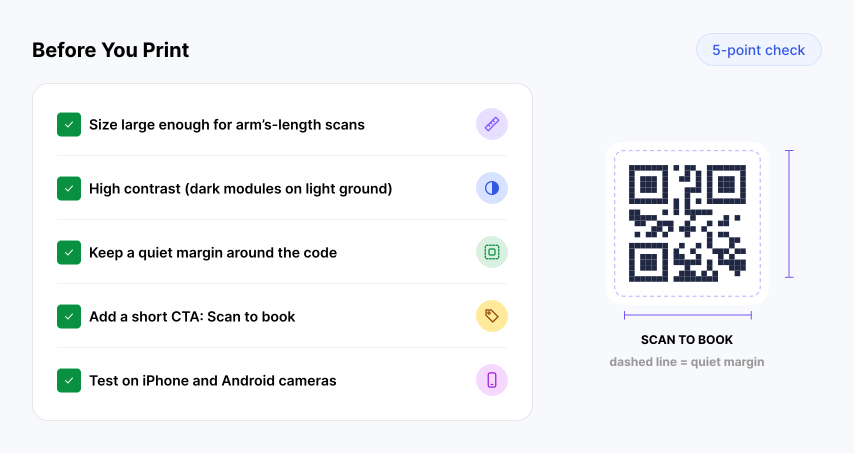
Size. Print guides commonly treat about 2 × 2 cm (0.8 × 0.8 in) as a practical minimum for close-up surfaces such as flyers and cards, and recommend going larger for distance scans. QR Code Generator’s flyer guidance uses that 2 × 2 cm floor; Bitly describes a similar minimum and a rough 10:1 distance-to-size rule of thumb. (QR Code Generator; Bitly)
Contrast and quiet zone. Dark modules on a light background scan more reliably than light-on-dark. Leave a clear margin around the code.
CTA. Add “Scan to book” so people know what happens after the scan.
Test before a print run. Scan the final proof on iPhone and Android at real viewing distance.
Point to a booking page. The code should open the page where someone can pick a time, not a homepage.
Pair a LinkedIn QR With a Booking QR
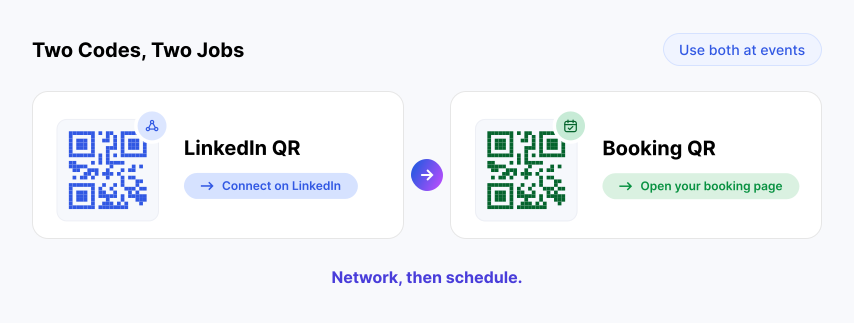
A LinkedIn QR helps someone connect. A booking QR helps them put a time on the calendar. At events, you can offer both. For LinkedIn-specific tips, see LinkedIn QR codes.
Common Mistakes
- Printing the code too small for the viewing distance
- Low contrast or a busy photo behind the modules
- No call to action beside the code
- Linking to a homepage instead of a booking page
- Reusing an old file after your booking URL changes
Frequently Asked Questions
Start with the two places you already use every week. For many coaches and consultants, that is a business card plus an email signature. For studio-based trainers or tutors, a front-desk or window sign plus a thank-you card often works first.
Use about 2 × 2 cm (0.8 × 0.8 in) as a close-up minimum, then size up for posters, windows, and booth banners. A simple distance rule of thumb is roughly one-tenth of the expected scan distance. Always test the printed piece. (QR Code Generator; Bitly)
Yes, if both should open the same booking page. Use separate codes when the offers differ (for example, a trial lesson page versus a package page).
A LinkedIn QR opens your profile. A booking QR opens your scheduling page. Many professionals use both. See LinkedIn QR codes.
Put the Code Where People Already Look
Pick two or three places from the list, test a scan on the devices your clients use, then print. When you need the booking-page QR itself, start from Calfrenzy’s QR code appointment booking.
Calfrenzy’s Free plan includes 1 booking page, 1 calendar, Google Meet, and email notifications. Professional is $7.99/mo billed annually or $9.99 monthly, with packages, recurring bookings, Stripe payments, and up to 3 email reminders. A 14-day trial needs no card; afterward the account moves to Free if you do not stay on a paid plan. Calendars connect to Google, Outlook, and iCloud. Reminders are email only.
One Link, One Code, Every Place You Meet Clients
Set up your booking page on Calfrenzy, then put its QR where people already look. The Free plan covers one booking page and one calendar; Professional adds packages, recurring bookings and Stripe payments for $7.99/mo billed annually. 14-day trial, no card needed.
Get Started FreeRelated Articles

LinkedIn QR Codes
LinkedIn QR codes make networking faster, easier, and more measurable. Use them on business cards, email signatures, presentations, and event materials to help people connect with you instantly. Customize your QR code for branding, track engagement with analytics, and pair it with a booking QR code from Calfrenzy to turn connections into scheduled meetings.

How to Set Up Online and In-Person Booking From One Link
Let clients book online or in-person sessions from one booking link. Follow the setup steps and start taking bookings today.
Ready to Grow Your Practice?
Set up your booking page in under 2 minutes. Packages, payments, and reminders included.


